IMF Tune v5.6 - Moving the Quarantine Database to New Hardware
 Download as PDF Document
The IMF Tune v5.6 Moderator/Reporting relies on an MS SQL database backend. Here records on quarantined emails and reporting are stored. With time you may need to move the database to new hardware.
1. Preparing the Destination MS SQL Server Machine
Install MS SQL on the machine that will be hosting the new Quarantine database. Keep in mind the following points:
IMF Tune supports various MS SQL versions including the free SQL Express editions. For a complete list of supported versions check the IMF Tune Moderator/Reporting Manual.
The MS SQL machine must be on the same Windows Domain as the ASP.NET Moderator Web interface.
MS SQL must be installed in Mixed Authentication Mode supporting both Windows Integrated Authentication and SQL Authentication. More on this in Enabling SQL Authentication.
If the SQL server is running behind a firewall make sure to open the necessary ports as explained in Running SQL behind a Firewall - IMF Tune Quarantine & Reporting.
2. Preparing the Source MS SQL Server Machine
Follow these steps to collect the necessary information and prepare the source MS SQL database for the data transfer
-
Determine the exact location and instance name of the MS SQL database currently in use by IMF Tune. This information is available at the IMF Tune Server configuration interface under:
Quarantine | Quarantine Database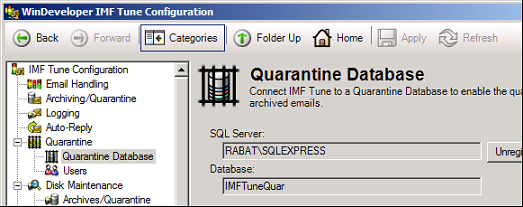
IMF Tune Quarantine Database Settings SQL Server - identifies the current database server
Database - identifies the database name where the IMF Tune Quarantine/Reporting data is stored (by default IMFTuneQuar)
Optionally you may want to logon to the current IMF Tune Quarantine and complete the moderation of any pending quarantines. This is optional since quarantines may be moderated after completing the move.
-
Optionally shrink the database to free up unused database space. The shrink operation reduces the data file size.
At the SQL Server Management Studio, open the SQL server instance identified in a)
Right click the IMF Tune Quarantine database (typically IMFTuneQuar) and select: Tasks | Shrink Database
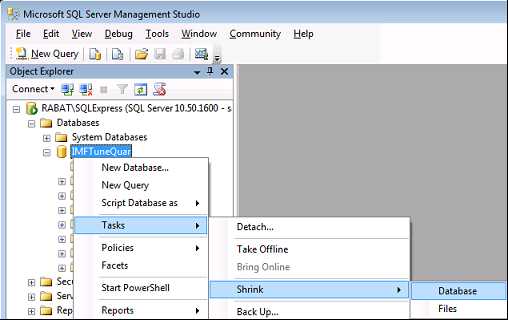
Shrink SQL Database Note: IMF Tune supports a wide range of MS SQL versions, so the exact steps may vary slightly depending on your version.
3. Moving the Database
-
At the MS Exchange server where the IMF Tune Anti-Spam Server is installed, stop the IMF Tune Attendant service. This service is responsible for uploading new quarantines to the database. As long as the service is stopped, emails will still be processed but no new quarantines will be uploaded.
Note: It is important not to keep the Attendant service stopped for too long, since it also performs other important tasks.
Note: If running more than one IMF Tune Server, each quarantining emails to the same SQL database, stop the Attendant on these servers too.
-
Detach the current IMF Tune Quarantine database.
At the SQL Server Management Studio, open the server instance identified in 2a)
Right click the IMF Tune Quarantine database (typically IMFTuneQuar) and select: Tasks | Detach...
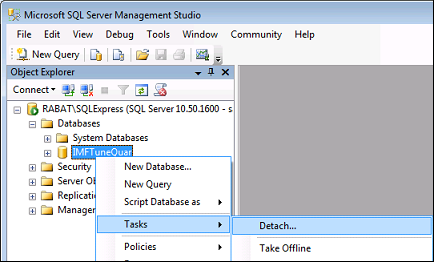
Detach SQL Database Detach may warn about currently active connections. Drop active connections to go ahead.
-
Move the database files from the old to the new MS SQL server machine.
SQL stores databases in two files with the extensions MDF and LDF
You will normally find these under the SQL Server application directory in a sub-directory named Data.
The database filenames are derived from the Database name. By default these are:
IMFTuneQuar.MDF
IMFTuneQuar_log.LDF
-
Attach the database to the new SQL database server.
Open the SQL Server Management Studio on the new SQL database server.
-
Right click the Database node and select Attach...
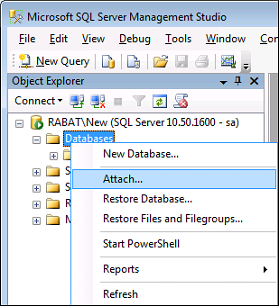
Attach SQL Database This will open the Database Attachment options dialog.
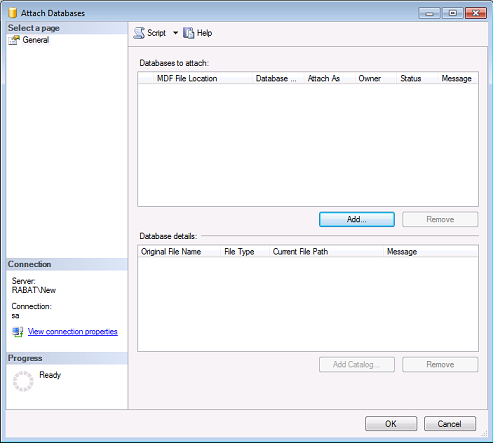
Attach Database Options -
Click Add and browse to the disk location determined in c)
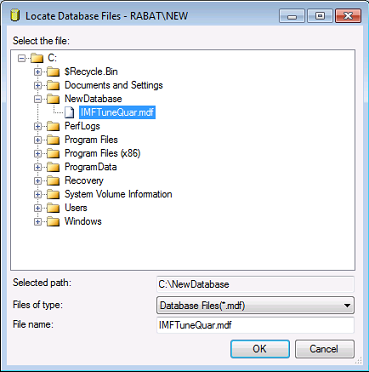
Attach Database File Path Selecting the IMF Tune Database MDF file updates the dialog as shown next.
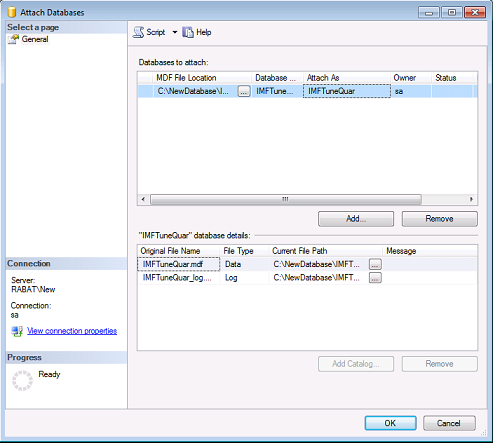
Attach Ready to Go Complete the Attach operation.
-
Move to the IMF Tune server machine and open the IMF Tune configuration. This will return a warning saying that the quarantine database could not be connected. Ignore this.

No Database Access Warning -
Unregister IMF Tune from the old Quarantine Database which is no longer available:
Under Quarantine | Quarantine Database click on Unregister
In the dialog that opens click on Unregister again to kick-off the process.
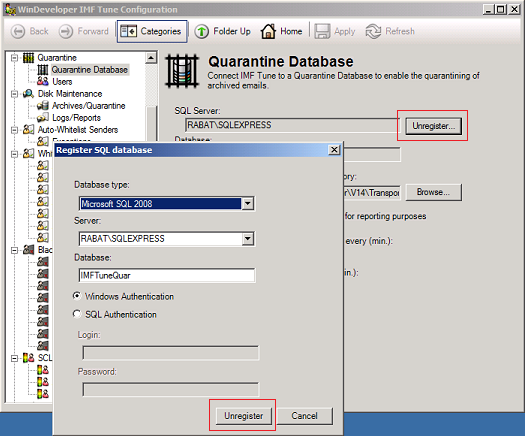
IMF Tune Database Unregister The configuration may pop a Warning dialog saying that any configuration changes will be committed. Click Yes.
-
The un-registration process will at the end report another Warning saying that it was unable to connect to the Quarantine Database. This is normal since the old Quarantine is no longer available. Just click OK to close this dialog.
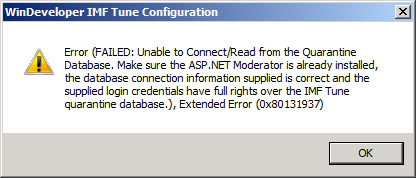
Unregister Error
-
Register the IMF Tune server with the new Quarantine Database.
At the IMF Tune configuration select Quarantine | Quarantine Database
Click on Register
At the dialog that opens specify the new SQL Server, Database Name and click Register
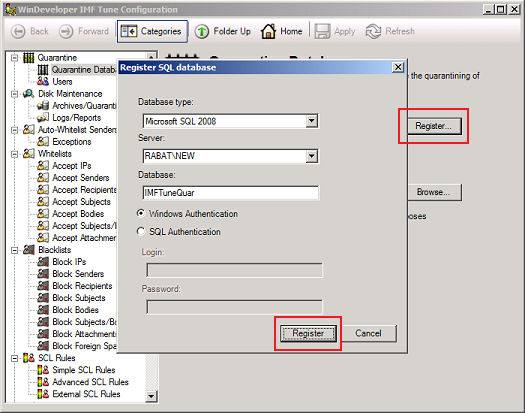
IMF Tune Database Rergister -
The configuration may now raise a warning saying that an IMF Tune server having the same name is already registered. Click Yes to overwrite the information.
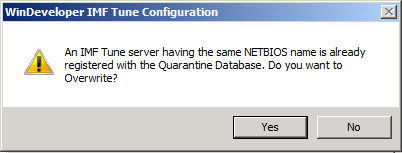
Server Already Registered Warning
This completes the registration process. Occasionally this Registration step may fail on the first attempt. In that case repeat step g) once more.
Close the Configuration
If running more than one IMF Tune Server, each quarantining emails to the same SQL database, follow steps e) to g) on the other servers too.
Start the IMF Tune Attendant Service stopped in a)
-
Register the ASP.NET Moderator/Reporting interface with the new Quarantine Database
Move to the machine where the ASP.NET Moderator interface is installed. This may be a different machine from the one running the IMF Tune server.
From the IMF Tune Moderator application program group start the Quarantine Database Wizard
-
At the first Wizard step identify the new SQL Server, Database Name and click Next
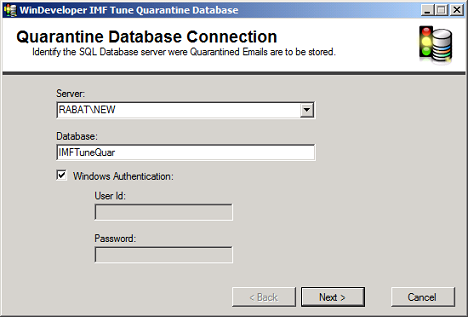
ASP.NET Moderator Registration -
At the Connection Type step select Attach to already existing Quarantine Database
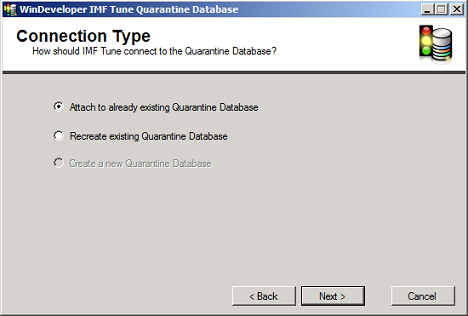
Attach to Existing Database Note: If this option is greyed out make sure you are connecting to the New Database server.
Complete the Wizard to the end.
References
IMF Tune Moderator/Reporting Manual
Running SQL behind a Firewall - IMF Tune Quarantine & Reporting